2.3. Deleting a Key-Value Pair
For allowing the user to delete a key-value pair entry from the store, the user interface must provide a facility for choosing the entry to be dropped. For this purpose, HTML provides the select element, which is rendered as a selection field that can be expanded to a list of options to choose from.
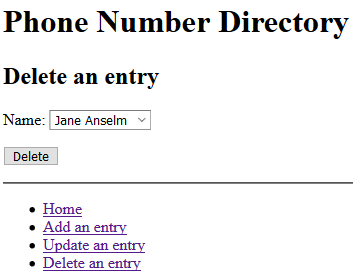
The Delete user interface consists of a labeled selection field (named "key") and a Delete button.
1 2 3 4 5 6 7 8 9 10 11 12 13 14 15 16 17 18 | <!DOCTYPE html> <html xmlns="http://www.w3.org/1999/xhtml"> <head> <meta charset="UTF-8" /> <title>Phone Number Directory</title> </head> <body> <h1>Phone Number Directory</h1> <h2>Delete an entry</h2> <form> <p><label>Name: <select name="key"></select></label></p> <p><button type="button" onclick="destroy()">Delete</button></p> </form> <hr/> <nav>...</nav> <script>...</script> </body> </html> |
The following script element contains the JavaScript code for filling the selection list with option elements and the code of the destroy function, which deletes the selected key-value pair both from the localStorage store and from the selection list.
1 2 3 4 5 6 7 8 9 10 11 12 13 14 15 16 17 18 | <script>
// get a handle for accessing the form element
let formEl = document.forms[0];
// get a handle for accessing the "key" selection field
let selectEl = formEl.key;
// fill selection list with options
for (let key of Object.keys( localStorage)) {
let optionEl = document.createElement("option");
optionEl.text = key;
selectEl.add( optionEl, null);
}
function destroy() {
// delete from key-value store
localStorage.removeItem( selectEl.value);
// delete also from selection list
selectEl.remove( selectEl.selectedIndex);
}
</script> |
Exercise: Copy and paste the HTML code into a fresh editor window. Don't forget to insert both the content of the nav element (from a code listing above) and the content of the script element. Save the resulting user interface page in your example folder as "delete.html". Then open the "delete.html" file in a browser. You should see a page containing a user interface as in Figure 2-2 below. Choose a name and click the Delete button. Then click on Home in the menu for checking if the chosen key-value pair has been deleted from the store.